Customers
Availability Groups
Availability Groups allow you to control what categories and products your customers see in your store, based on their membership in a group. For example, you could use Availability Groups to offer different products or packaging to retail and wholesale customers.
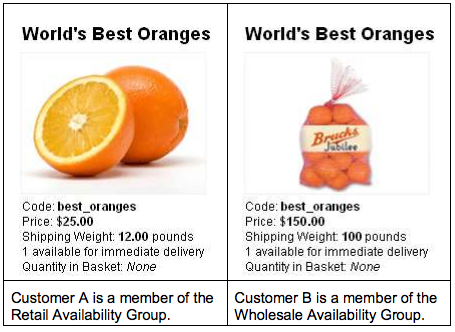
The general process is:
- Create an Availability Group.
- Add customers, categories, and products to the group.
When customers in that group visit your on-line store and sign in, they will see the categories and products that you selected.
- You can add the same customers, categories and products to multiple groups.
- If a category or product is not assigned to a group, it is visible to everyone: all groups and all customers who are not signed in. Once you assign a category or product to a group, it is only visible to customers who sign in and are a member of that group. You can assign a product or category to as many groups as you want.
Examples
Create a store category called "Bulk Produce" and two Availability Groups: "Retail", and "Wholesale". We'll add one customer to each group, but no categories or products yet. When a customer reaches your store they will be either:
- Not signed in.
- Signed in, and a member of the Retail group.
- Signed in, and a member of the Wholesale group. (Technically the customer could be a member of both the Retail and Wholesale groups, but for this example, we'll assume that they are in one or the other.)
Example 1
If the category "Bulk Produce" is not assigned to any Availability Group it will be visible to everyone: members of any group, and customers who visit your store and are not signed in.
Example 2
Now we'll add the Bulk Produce category to the Wholesale Availability Group.
- The Bulk Produce category is visible to customers who sign in and are a member of the Wholesale group.
- Customers who do not sign in or are not part of the Wholesale Group cannot see the Bulk Produce category.
Example 3
Add the Bulk Produce category to both the Wholesale Availability Group and the Retail Availability Group.
- The Bulk Produce category is now visible to customers who sign in and are a member of either group.
- Customers who do not sign in or are not part of either group cannot see the Bulk Produce category.
To Use Availability Groups
- Create a new Availability Group.
1.1. Go to  > Customers > Availability Groups tab.
1.2. In the Availability Groups screen, click Add Group  .
1.3. Enter a name for the new group, such as "Wholesale"

1.4. Click Save  .
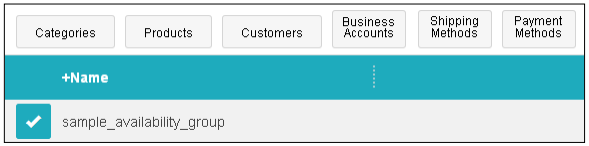
After you create an Availability Group you can select it and add:
- Categories
- Products
- Customers
- Business Accounts
- Shipping Methods
- Payment Methods