Utilities
Template Based Batch Reports
By default, Miva Merchant has two template based batch reports:
- The Printable Invoice appears in the:
 > Order Processing > Orders tab > Run Batch Report dialog box
The Shipment Picklist appears in the:
> Order Processing > Shipments > Run Batch Report dialog box
You can also create your own batch reports for either managing orders or shipments.
To Enable the Default Reports
- Go to > Utilities > Add/Remove Modules tab.
- Select the Available Modules section.
- Under Template Based Batch Reports, click Install.
- You can now run the default reports.
To Run the Default Reports
- Printable Invoice:
- Go to > Order Processing > Orders tab.
- Select a batch, or select one or more orders.
- Click the Batch Report button.
- Shipment Picklist:
- Go to > Order Processing > Shipments tab.
- Select a batch, or select one or more shipments.
- Click the Batch Report button.
To Edit a Template Based Batch Report
You should already have followed the steps to enable the default reports. There are two ways to edit the default reports (Shipment Picklist and Printable Invoice):
- Method 1 - Utilities Screen
> Utilities > Template Based Batch Reports tab.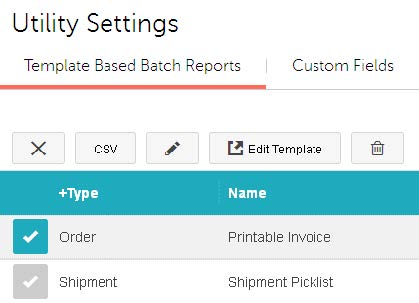
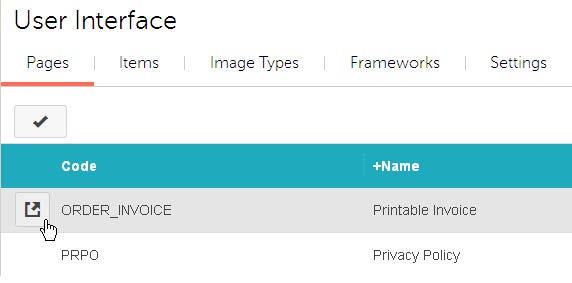
- Method 2 - Pages Screen
- Go to > User Interface > Pages tab.
- Edit one of the pages that is associated with a default report:
- ORDER_INVOICE (Printable Invoice)
- SHIPMENT_PICKLIST
To Create a New Template Based Batch Report
You should already have followed the steps to enable the default reports.
Creating a new template based batch report is a two-step process. First you create an empty report, which is easy; then you add the template code that will cause the report to gather and process the information that you want. This may require a significant knowledge of Miva Merchant template code.
- Go to > Utilities > Template Based Batch Reports tab.
- In the Template Based Batch Reports tab, click the Add Report button
 .
- In the Add Batch Report dialog box, enter a:
- Type: Select either Order or Shipping.
If you select Order, your report will appear under:
> Order Processing > Orders tab > (Select an order) > (click Batch Report button)If you select Shipping, your report will show up in the batch report dialog box under:
> Order Processing > Shipments tab > (Select an order) > (click Batch Report button)- Code: The code uniquely identifies the report in the database.
- Name: The name of the report will appear in the admin interface.
- Click the Add button.
To Delete a Template Based Batch Report
- Go to > Utilities > Template Based Batch Reports tab.
- Select the report that you want to delete.
- Click the Delete button
 to permanently delete the report.